After you
download all required component place all of your download file into desktop

Ok, Now install Adaptec ASPI layer....
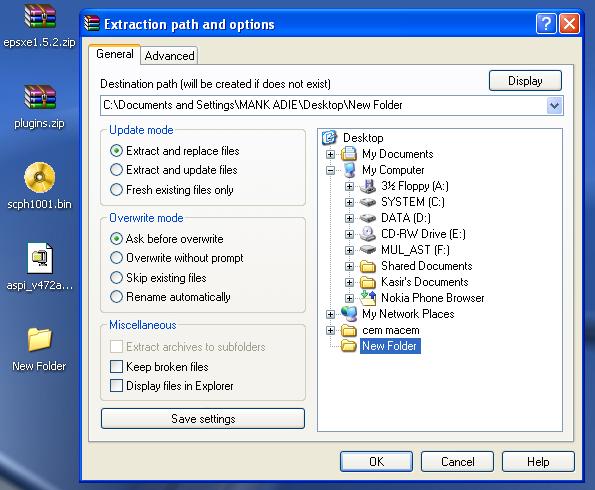
Make a New Folder in the desktop

After that extract ePSXe 1.5.2.zip into that New Folder, You will have file like this in your new folder..

Move your scph1001.bin into Bios Folder in new folder that you created before

Extract the plugin pack into Plugin folder in new folder that you created before

Now you can delete all unnecessary file in your desktop, like epsxe1.5.2.zip, plugins.zip, and aspi installer.
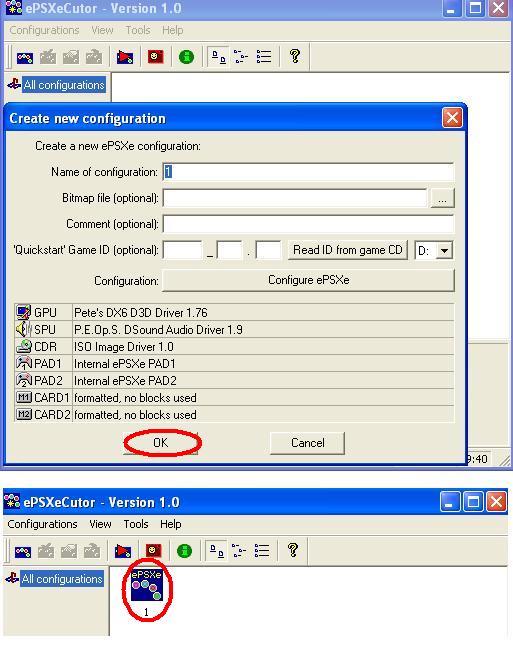
Ok now go to new folder and run the ePSXeCutor.exe and make a new configuration, you can type any name for it and skip the optional field

Before you run into configure ePSXe go back to you New Folder and go to Plugins folder, you will see a plugins_install.exe run the installer and place it in the same directory (c:/dekstop/new folder/plugins or something like that^^). and install, you will have a lot of plugin in there.

Choose the video plugin ( I suggest to use Petes DX6 D3D Driver you can change and configure anytime later) Select Petes DX6 D3D Driver and then configure use nice setting on the bottom left, and you can select either full mode or window mode.

For sound plugin use P.E.op.S D Sound Audio Driver just press activate to use the default setting.

If you use original laystation CD just activate Internal ePSXe W2K crd,

If you use ISO just activate Zink88 Disk Image driver, press activate and configure, select where the ISO file that you want to use.

For game pad just use internal ePSXe PAD 1 and PAD 2, activate both.

Now move to Memory Card option create 2 memory card and then format both of them, and then select slot 1 and slot 2

Now move to Option, select Bios and select scph1001.bin, it will appear if you press down in Bios Option...

After all finished just Close and press OK. In your ePSXeCutor will appear new icon for your configuration setting.

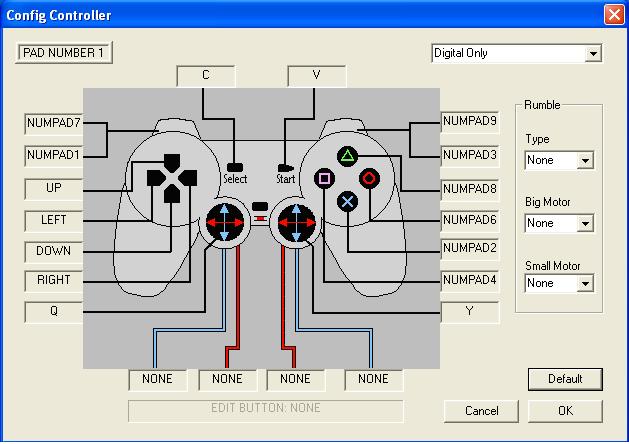
Ready?? Slow down, Back to your new folder and then run ePSXe.exe and then select config and press game pad1 and configure your game pad. Finish? just close and back to your ePSXECutor.


Click the icon and if you are using original game CD it will run directly, and if you using ISO select the game .bin File and then run.

Now you are ready to kick some enemies !!